How to use SSH client (Windows CUI).
As an SSH client for Windows, tools such as Tera Term and PuTTY can be used. This page provides an explanation on how to set up and use Tera Term.
目次
Setup
Download the latest setup file from the official Tera Term web site.
The latest setup file as of January 16, 2015 is teraterm-4.85.exe.
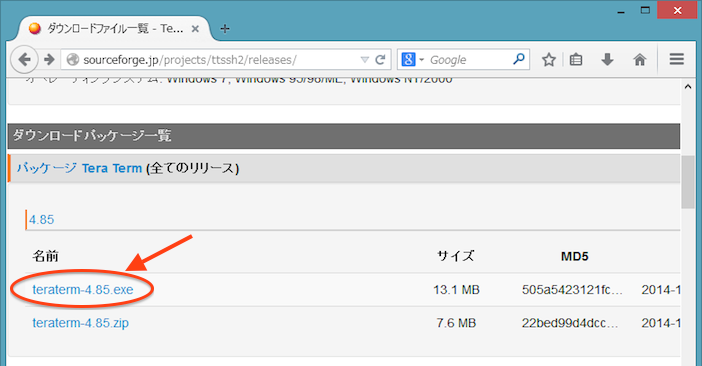
Click the downloaded setup program and execute the file.

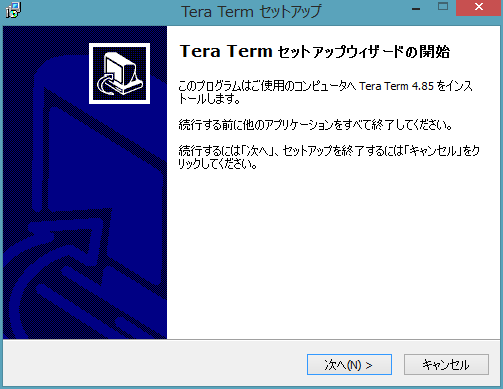
The Setup Wizard is displayed. Click [Next].
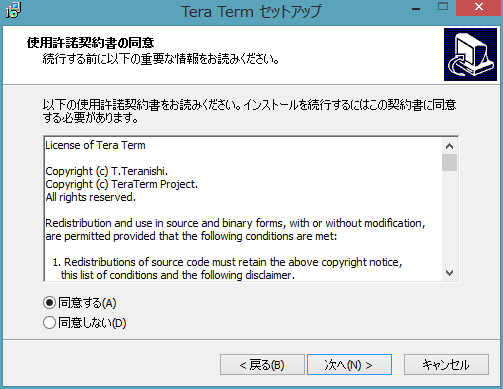
License agreement is displayed. Click [I accept the agreement] and click [Next].
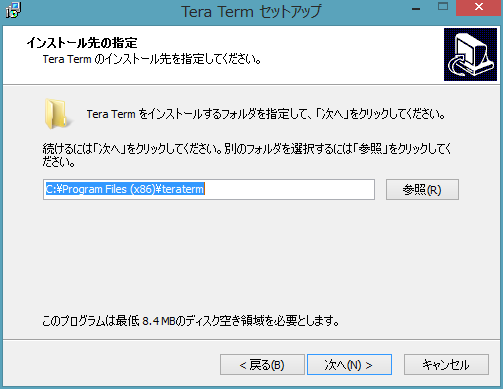
Specify an installation folder. Click [Next].
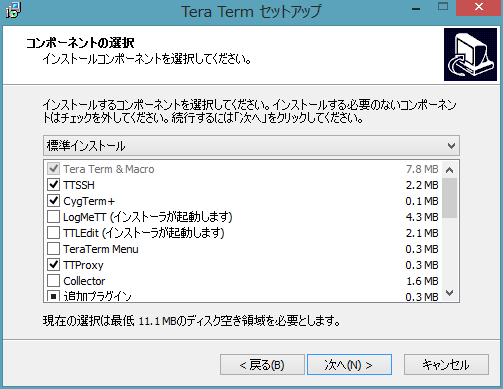
Select components that should be installed. Click [Next].
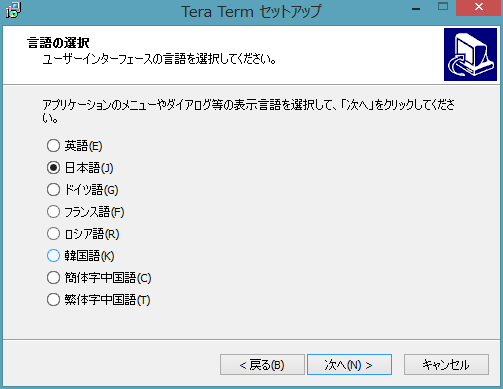
Select the language of application’s menu and dialog. Click [Next].
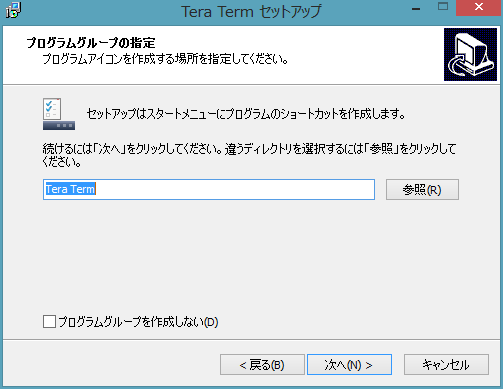
Select where the program’s shorcut should be placed. Click [Next].
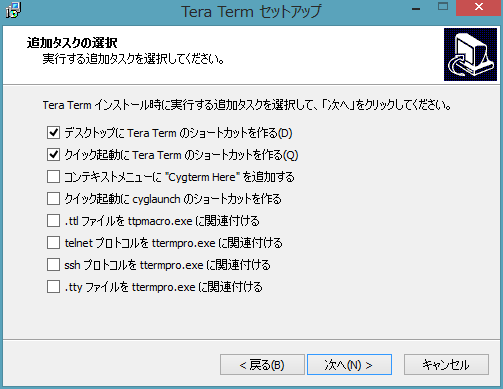
Select additional tasks that should be performed. Click [Next].
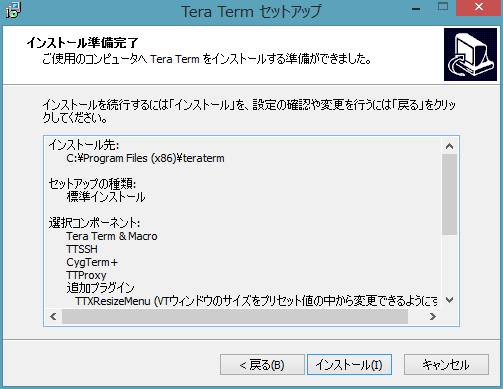
Check the installation summary. Click [Install].
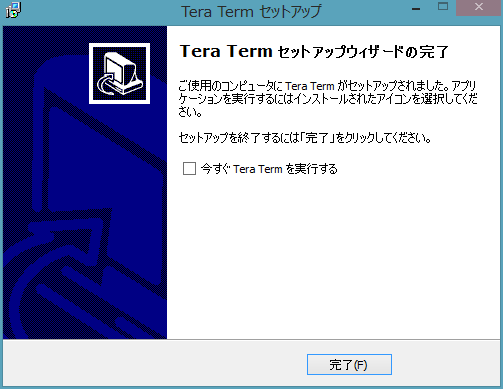
Installation of Tera Term is complete. Click [Finish].
How to connect with Tera Term
Start Tera Term from Start menu.

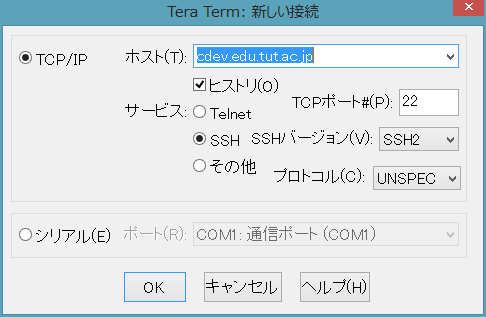
Enter the server that you connect in the [Host]. To see the name of destination servers, click here. Make sure that [SSH] is selected as [Service] and click [OK].
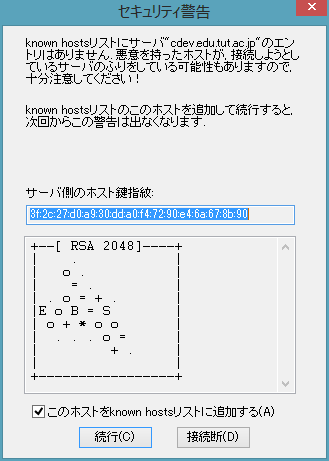
When connecting a server for the first time, a dialog to check if the server name is correct. Click [Continue].
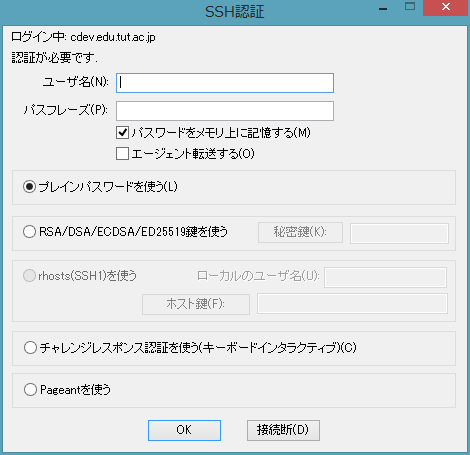
Enter the account name of the Information and Media Center in [User name]. For users outside the university, a string like parXXXXXX, which is shown when an account is created, is your account name. Then, enter authentication information. Users inside the university should select [Use plain password to log in] and enter the password. Users outside the university should select [Use RSA/DSA/ECDSA/ED25519 key to log in] and enter your secret key and passphrase.
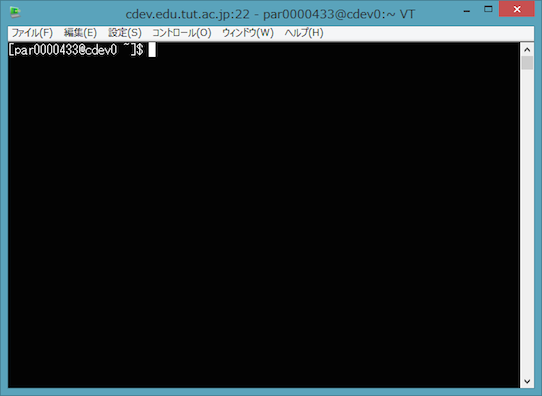
When it successfully connects the server, the below screen is displayed. If the connection attempt fails, make sure that the server name, your account name, password, etc. are correct once again.
Generation of a public key
Start Tera Term.
Although a dialog to enter a connection destination, click [Cancel].
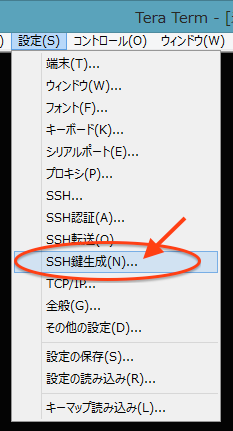
Click [SSH KeyGenerator] in the [Setup] menu.
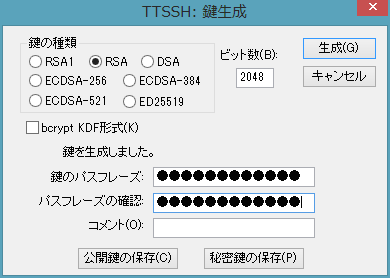
Make sure that [RSA] is selected and 2048 is entered in the [Key Bits] and click [Generate].
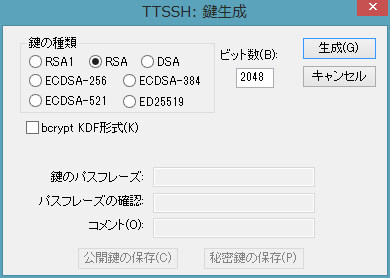
Enter passphrase of a generated key in [Key passphrase] and [Confirm passphrase]. The passphrase is necessary when connecting to the HPC cluster, set a sufficiently long and memorable passphrase.
Click [Save public key] and [Save private key] and save both keys. Private keys are important files used in authentication. Save the file in disk space which other users cannot access.